
Split Tunneling on Android: What It Is, Why It Matters, and How to Use It (2026 Guide)
Split tunneling is one of the most practical VPN features on Android—because it lets you be selective.
Instead of sending all your phone’s traffic through a VPN, split tunneling lets you decide which apps use the VPN and which apps connect normally. That single choice can fix common problems like “this streaming app won’t load” or “my banking app looks suspicious,” while still keeping the apps you care about inside the VPN.
In this guide, you’ll learn what split tunneling is, how it works, and how to use it with copy-paste presets you can apply in minutes.
Quick Summary
-
Split tunneling lets you keep one app inside the VPN and everything else normal.
-
Use Include mode when you only want the VPN for a few apps.
-
Use Exclude mode when most apps should use the VPN, except a few.
-
Start with a preset, then adjust one app at a time.
-
Test by checking whether the app loads and whether playback or login works.
-
If a network is restrictive, try a different protocol (WireGuard vs XRay (VLESS/Reality)) without expecting guarantees.
-
NimbusVPN supports Split Tunneling, Android TV, and two protocols: WireGuard and XRay (VLESS/Reality).
Why split tunneling matters
Split tunneling solves a simple problem: not every app behaves well on a VPN.
Some apps want a normal, local connection (banking, local services, casting). Others benefit from VPN usage (privacy on shared Wi-Fi, traveling, or general network restrictions). Split tunneling lets you mix both without constantly toggling the VPN on and off.
Practical reasons people use split tunneling:
-
Keep one app inside the VPN while everything else stays normal
-
Fix a single app that breaks when the VPN is on
-
Keep banking apps outside the VPN to reduce unusual login prompts
-
Keep streaming apps outside the VPN to reduce playback issues
-
Route work apps through the VPN only, especially on shared networks
-
Travel: route only home-region apps through the VPN and keep the rest normal
How split tunneling works (simple mental model)
Think of your phone as a building with two doors:
-
Door 1: normal internet (direct)
-
Door 2: VPN tunnel
Split tunneling is the doorman. For each app, it decides which door that app uses.
Most Android VPN apps offer two modes:
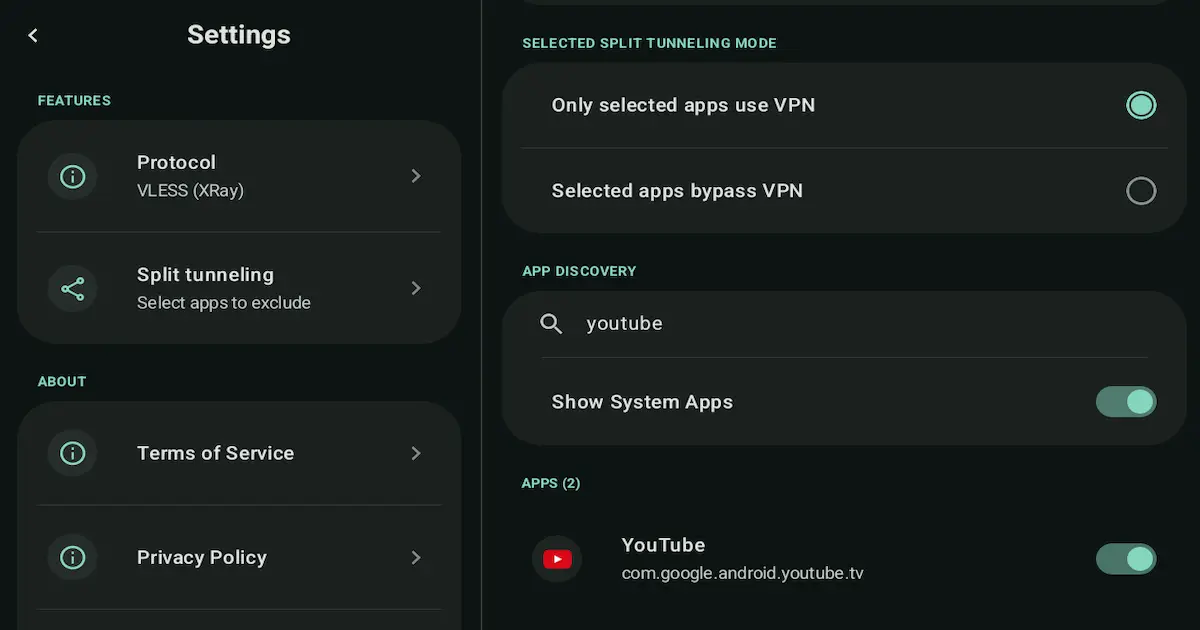
- Include (only selected apps use VPN)
Everything is normal unless you put an app on the “VPN list.”
- Exclude (selected apps bypass VPN)
Everything uses VPN unless you put an app on the “Direct list.”
If you remember one thing, remember this rule:
-
Use Include when you want VPN for a few apps.
-
Use Exclude when you want VPN for most apps.
Before you start (2-minute checklist)
This checklist prevents most confusion later:
-
Decide your goal: privacy on Wi-Fi, travel, streaming stability, or a specific app issue
-
Make sure your VPN connects normally first (without split tunneling)
-
Pick one or two apps you will test after changes
-
After every change, disconnect and reconnect the VPN once
How to set up split tunneling on Android (generic steps)
Different VPN apps label menus differently, but the flow is usually similar:
1. Open your VPN app.
2. Find Split Tunneling (often under Settings).
3. Choose a mode:
- Include only selected apps
- Exclude selected apps
4. Select apps for your chosen list.
5. Reconnect the VPN.
6. Test the target app(s).
Tip: start with one app. Add more only after it works.
6 practical presets (copy-paste setups)
Below are six presets you can use as known good starting points. Each one includes intent, setup mode, and a quick test checklist.
Preset A — VPN only for one app
What it’s for: you only want the VPN for one specific app (often the most reliable setup).
How to configure (Include approach):
-
Mode: Include only selected apps
-
Add: one app (the app you want inside the VPN)
-
Everything else: direct
Quick test checklist:
-
VPN shows Connected
-
Target app loads normally
-
Playback or login works (try one action)
-
Another app (browser or YouTube) still works normally
Preset B — Exclude one problematic app
What it’s for: most apps are fine on VPN, but one app breaks.
How to configure (Exclude approach):
-
Mode: Exclude selected apps
-
Add: the problematic app (bypass VPN)
-
Everything else: uses VPN
Quick test checklist:
-
Problematic app now loads or plays
-
Apps you care about still work with VPN on
-
No repeated logouts in the excluded app
Preset C — Banking apps outside VPN, everything else inside
What it’s for: keep banking apps on your normal connection to reduce unusual login friction, while using VPN for the rest.
How to configure (Exclude approach):
-
Mode: Exclude selected apps
-
Add: banking apps and payment apps you rely on
-
Everything else: uses VPN
Quick test checklist:
-
Banking app login works without verification loops
-
Payments or verification screens load
-
Other apps still work with VPN on
Preset D — Streaming apps outside VPN, everything else inside
What it’s for: streaming apps sometimes fail or buffer on VPN. This keeps streaming direct while keeping the rest inside VPN.
How to configure (Exclude approach):
-
Mode: Exclude selected apps
-
Add: streaming apps that are sensitive (one by one)
-
Everything else: uses VPN
Quick test checklist:
-
Streaming app opens and plays a video
-
No playback loops caused by VPN routing
-
Other apps still work inside VPN
Preset E — Work apps inside VPN, everything else outside
What it’s for: you want VPN only for a small set of work apps on shared networks.
How to configure (Include approach):
-
Mode: Include only selected apps
-
Add: work apps (email, chat, docs, file storage, browser if needed)
-
Everything else: direct
Quick test checklist:
-
Work app sync works
-
Attachments open or download
-
Non-work apps still feel normal
Preset F — Travel mode (home-region apps via VPN only)
What it’s for: when traveling, some apps behave differently. This routes only home-region apps through VPN and keeps everything else direct.
How to configure (Include approach):
-
Mode: Include only selected apps
-
Add: apps you want to behave like at home
-
Everything else: direct
-
Choose a VPN server near your home region (if available)
Quick test checklist:
-
Target home-region app loads and works normally
-
Phone browsing remains normal
-
No unexpected logouts or repeated captchas in the target app
WireGuard vs VLESS (Reality) with split tunneling
NimbusVPN supports WireGuard and XRay (VLESS/Reality). Both can be used with split tunneling. The best choice depends on the network and what you are trying to do—without guarantees.
-
WireGuard + split tunneling: a good first choice on normal networks for a clean setup.
-
XRay (VLESS/Reality) + split tunneling: helpful on restrictive networks where standard VPN connections struggle.
Rule of thumb:
-
Start with WireGuard.
-
If connections fail or the network seems restrictive, try XRay (VLESS/Reality).
-
Keep your preset the same while switching protocols, so you only change one variable at a time.
Common mistakes
These mistakes cause most “split tunneling does not work” reports:
1. Picking the wrong mode (Include vs Exclude) and routing the opposite of what you intended
2. Adding too many apps at once, then not knowing which one caused the issue
3. Forgetting to reconnect the VPN after changing the split tunneling list
4. Testing on a captive portal network (hotel Wi-Fi login not completed yet)
5. Assuming split tunneling affects system traffic the same way as apps
6. Not accounting for companion apps (one app plus a helper service)
7. Private DNS conflicts causing “connected but nothing loads”
8. Power restrictions on some devices that interrupt background networking
9. Expecting speed boosts instead of using split tunneling as a control tool
10. Changing server, protocol, and app lists all at once
Troubleshooting
Try these fixes in order. Most issues are solved by the first few steps.
1. Nothing changes after enabling split tunneling
- Reconnect the VPN.
- Reboot the phone if needed.
2. Excluded app still behaves like it’s on VPN
- Confirm Exclude mode.
- Remove and add the app again.
- Exclude companion services if needed.
3. Included app still behaves like it’s not on VPN
- Confirm Include mode.
- Ensure the app is selected.
- Reconnect the VPN after changes.
4. Connected, but nothing loads
- Check Date and Time (automatic).
- Disable Private DNS temporarily.
- Try the other protocol.
5. Streaming app won’t load or videos won’t play
- Use Preset B or Preset D.
- Clear the app cache.
- Test once with VPN off to confirm the cause.
6. Banking app blocks login or repeats verification
- Use Preset C.
- Keep banking apps direct.
- Avoid switching servers during login attempts.
7. Hotel Wi-Fi captive portal breaks everything
- Disable VPN.
- Complete Wi-Fi login first.
- Re-enable VPN after internet works.
8. Works on mobile data, fails on Wi-Fi
- The Wi-Fi network may be restrictive.
- Switch protocol.
- Try another nearby server.
9. DNS issues (some apps work, others fail)
- Disable Private DNS temporarily.
- Reconnect the VPN.
- Restart the device.
10. App not listed in split tunneling menu
- Update the app.
- Reboot the phone.
- Some system apps are not selectable on certain Android builds.
FAQ
What is split tunneling on Android?
It is a VPN feature that lets you choose which apps use the VPN tunnel and which apps connect normally.
Is split tunneling safe?
It can be safe when used intentionally. Apps outside the VPN use your normal connection. Apps inside the VPN use the encrypted tunnel.
Should I use Include or Exclude mode?
Use Include when only a few apps need VPN. Use Exclude when most apps should use VPN except a few.
Why does my streaming app stop working when VPN is on?
Some streaming apps are sensitive to routing and IP changes. Excluding that app (Preset B or D) is often the simplest fix.
Why do banking apps sometimes dislike VPNs?
Banking systems may flag unusual locations or frequent IP changes. Keeping banking apps direct (Preset C) often reduces friction.
Does split tunneling improve speed?
It is mainly a control and compatibility feature. It may feel smoother in some setups, but it does not guarantee speed improvements.
Will split tunneling work on Android TV too?
Many VPN apps support split tunneling on Android TV. NimbusVPN supports Android TV and split tunneling, so the same preset logic applies.
What should I try first if split tunneling does nothing?
Reconnect the VPN after changes and test with just one app. If needed, reboot and check Private DNS.
How NimbusVPN fits
NimbusVPN is an Android VPN app that supports Split Tunneling and works on Android TV with a remote-friendly interface. It also offers two protocol options so you can adapt to different networks.
-
Split Tunneling to route only the apps you choose
-
Two protocols: WireGuard and XRay (VLESS/Reality)
-
Android TV support (remote-friendly)
-
Practical approach: start with a preset, test, then adjust one app at a time
CTA
If you want split tunneling you can actually use day to day—plus Android TV support and two protocol options—NimbusVPN is a simple place to start.
Privacy Policy and Terms are available on our website.
Related articles to write next
-
Split Tunneling Presets for Android TV: Streaming, Travel, and Work (2026)
-
WireGuard vs XRay (VLESS/Reality) on Android: Practical Protocol Guide (2026)
-
VPN on Hotel Wi-Fi: Android Setup Checklist + Common Fixes (2026)