
VPN for Android TV: Setup, Tips & Split Tunneling (2026 Guide)
Android TV and Google TV devices are great for streaming and apps—but they also connect to networks you do not control (hotel Wi-Fi, shared apartment routers, public hotspots). A VPN can help add privacy, add encryption on shared Wi-Fi, and reduce issues on networks that are restrictive or unstable.
This guide shows you the practical setup: install, connect, pick a protocol, and use Split Tunneling so your TV experience stays smooth.
Quick Summary
- Install a VPN app directly on Android TV from Google Play.
- Approve the VPN permission once; then connecting is one click.
- Pick a nearby server; if it is slow, try another nearby location.
- Use Split Tunneling to route only selected apps through the VPN.
- Start with WireGuard; switch to XRay (VLESS/Reality) if the network is restrictive.
- Fix most issues by checking time/date, Wi-Fi login pages, and DNS.
- NimbusVPN supports Android TV, Split Tunneling, and two protocols: WireGuard and XRay (VLESS/Reality).
Why use a VPN on Android TV in 2026?
A VPN (Virtual Private Network) creates a secure “tunnel” between your device and a VPN server. Think of it like putting your internet traffic into an encrypted envelope before it leaves your TV.
A VPN on Android TV can help with:
- Privacy on shared Wi-Fi: hotels and public networks are not private by default.
- Safer connections on open networks: encryption helps reduce casual snooping.
- Using your usual apps while traveling: apps can behave differently on new networks.
- General network restrictions: some networks block or limit certain traffic (use responsibly and follow local rules).
What you need before you start
A quick checklist before you install anything:
- An Android TV / Google TV device
- A stable internet connection (Wi-Fi or Ethernet)
- Access to Google Play Store on your TV
If your device does not have Google Play (common on uncertified TV boxes), the Play Store method may not work. In that case, a certified Android TV device is the simplest option.
Step-by-step: VPN setup on Android TV
Mini-summary: this section is the “do it once, then reuse forever” setup flow.
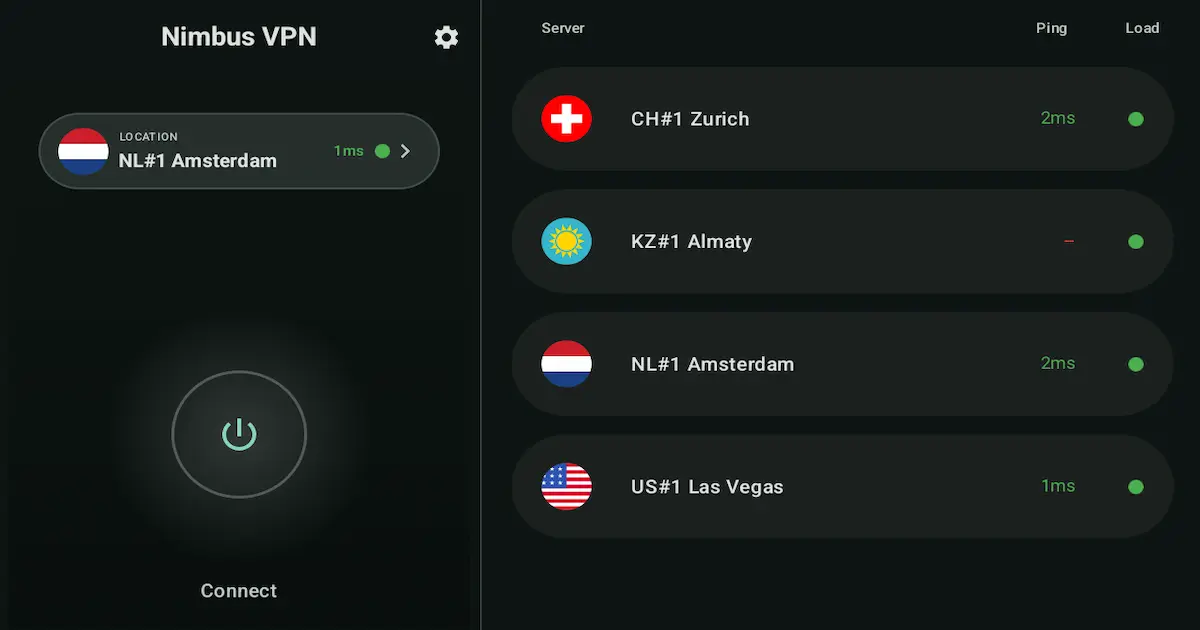
Step 1: Install NimbusVPN from Google Play
- On Android TV, open Google Play Store.
- Search for NimbusVPN.
- Select the app and choose Install.
- Open it from the Apps row (or Settings → Apps if needed).
Tip: If typing is slow, use voice search or the Google TV mobile app as a remote keyboard.
Step 2: First launch + permissions
Mini-summary: you approve one standard Android permission, then you are done.
- Open NimbusVPN.
- When Android asks to allow a VPN connection, choose Allow / OK.
This is the standard VPN permission on Android. It enables the app to route traffic through an encrypted tunnel.
Step 3: Choose a server (how to pick the “right” one)
Mini-summary: pick close for stability, and switch if it feels slow.
- For everyday browsing / privacy: choose a server close to your real location.
- For travel: choose a server near your home region if you want your normal app experience.
- If it feels slow: try another nearby location (do not jump across continents unless you need to).
You do not need a perfect choice—just pick one, test, and switch if needed.
Step 4: Connect and disconnect (remote-friendly workflow)
Mini-summary: this is the daily routine—connect, watch, disconnect (or keep it on with Split Tunneling).
To connect:
- Open NimbusVPN.
- Confirm the server.
- Select Connect and wait for “Connected”.
To disconnect:
- Open NimbusVPN.
- Select Disconnect.
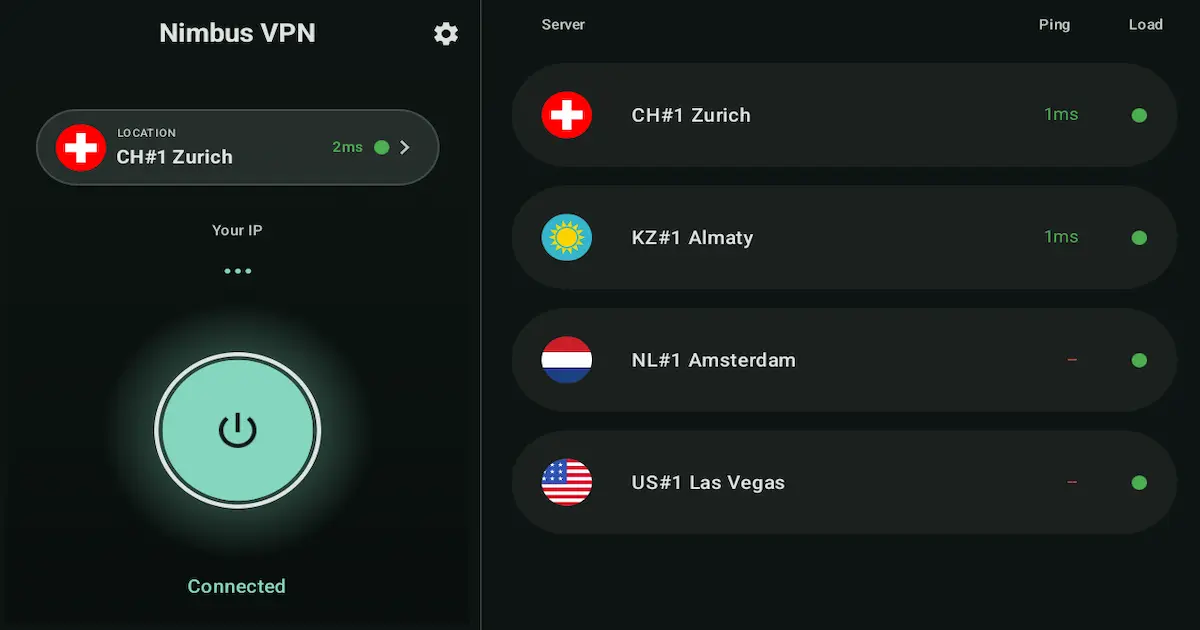
Tip: If you only use a VPN sometimes (travel or public Wi-Fi), disconnect when you are done to keep troubleshooting simple.
Step 5: Split Tunneling on TV (simple explanation + presets)
Mini-summary: Split Tunneling lets you keep one app inside the VPN and everything else normal.
Split Tunneling means: some apps use the VPN, others do not.
In simple terms: it lets you keep one app inside the VPN and everything else normal.
Think of it like a “routing list” for your TV: only the apps you choose go through the encrypted tunnel.
Why it matters on Android TV:
- Some apps work better without a VPN.
- TV boxes can be slower; routing everything through a VPN can add overhead.
- You can keep your setup stable by only routing the apps that need VPN.
Two practical presets (copy these)
Preset A — “VPN only for one app” (most reliable on TV)
Use when you want the VPN for one specific app and keep everything else normal.
- Split Tunneling mode: Include only selected apps
- Add: One app (the one you want through VPN)
- Leave everything else: Outside VPN
Preset B — “Exclude one problematic app” (quick fix)
Use when everything is fine except one app that fails on VPN.
- Split Tunneling mode: Exclude selected apps
- Add: The problematic app
- Everything else: Uses VPN
Typical setup steps (works for both presets)
- Open NimbusVPN → Split Tunneling.
- Pick Include only selected apps or Exclude selected apps.
- Select apps using the remote.
- Disconnect and reconnect the VPN to apply changes cleanly.
- Test the affected app(s).
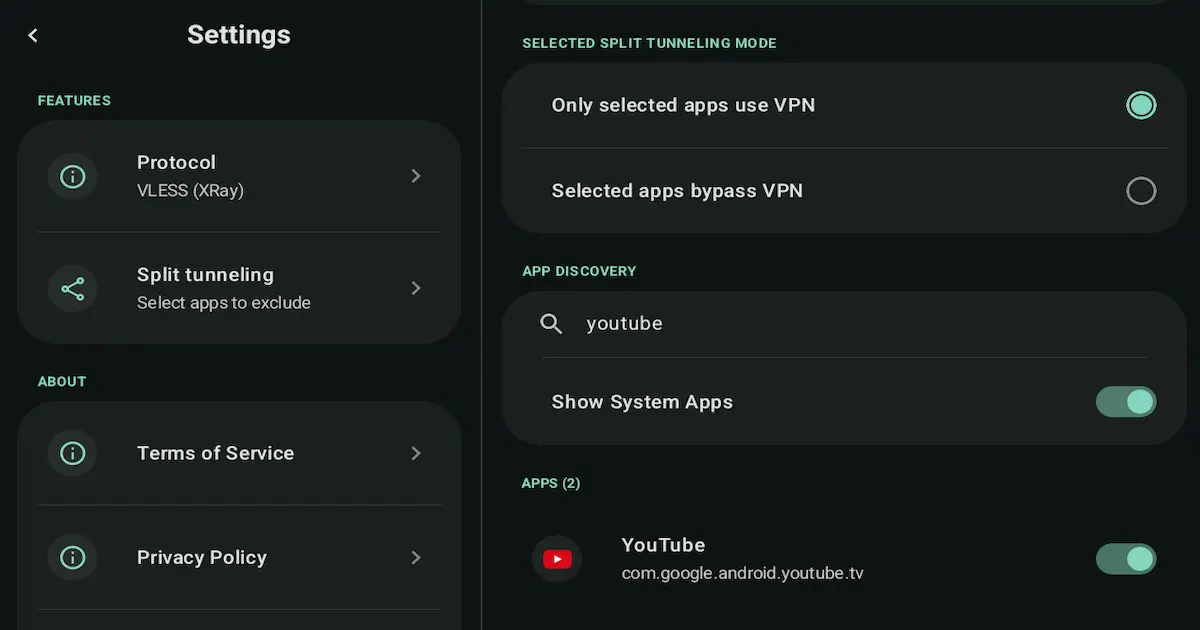
Practical rule: Start with one app, confirm it works, then add more.
Which protocol should I use? (WireGuard vs XRay (VLESS/Reality))
Mini-summary: start simple, then switch when the network is restrictive.
NimbusVPN supports two protocols: WireGuard and XRay (VLESS/Reality).
WireGuard is often the simplest option on normal networks. XRay (VLESS/Reality) can help when a network is restrictive and a more standard VPN approach fails.
Mini-table: WireGuard vs XRay (VLESS/Reality) (quick comparison)
| WireGuard | XRay (VLESS/Reality) | |
|---|---|---|
| Best for | Everyday use on normal networks | Restrictive or filtered networks |
| Typical use | Home Wi-Fi, regular public Wi-Fi | Networks that limit VPN traffic patterns |
| When to switch | Switch to XRay (VLESS/Reality) if it fails to connect or seems blocked | Switch to WireGuard on normal networks if you want the simplest setup |
| Notes | Lightweight and modern | Designed to blend in with regular web traffic patterns |
Rule of thumb (no guarantees)
- Start with WireGuard on normal networks.
- Switch to XRay (VLESS/Reality) if:
- WireGuard does not connect, or
- the network seems restrictive, or
- you see frequent disconnects.
If you are unsure, test both for one minute and keep the one that stays stable.
Everyday tips for a smooth Android TV VPN experience
Mini-summary: a few small habits prevent most headaches.
- Prefer Ethernet if available (many buffering issues are Wi-Fi).
- Use Split Tunneling presets instead of routing everything through VPN.
- Restart the TV box if the network starts acting “stuck” (common on Android TV).
- Avoid stacking too many network tweaks at once (VPN + custom DNS apps + router filters), because troubleshooting becomes harder.
How NimbusVPN helps (subtle, practical)
NimbusVPN is designed to be usable on a TV screen and still give you control:
- Android TV support with a remote-friendly experience
- Split Tunneling to keep specific apps stable while still using VPN where it matters
- Two protocols: WireGuard and XRay (VLESS/Reality) for different network conditions
- A practical setup flow: install → connect → test → switch protocol if needed
Troubleshooting
Most Android TV VPN issues are quick to fix—start with these common problems and practical solutions.
1) “Connection failed” or it keeps spinning
- Confirm internet works without VPN (open a browser app).
- Toggle Wi-Fi off/on or reboot the TV box.
- Switch protocol: WireGuard ↔ XRay (VLESS/Reality).
- Try a different nearby server location.
2) Connected, but nothing loads
- Check Date & Time (set to automatic if possible).
- Temporarily disable Private DNS:
- Settings → Network & Internet → Private DNS (names vary)
- Disconnect/reconnect the VPN.
3) Slow speeds or constant buffering
- Use Ethernet if possible.
- Switch to 5 GHz Wi-Fi or move closer to the router.
- Choose a nearby server; if slow, try another nearby location.
- Use Split Tunneling Preset A (VPN only for one app).
4) Streaming app opens, but videos do not play
- Test without VPN.
- If it works without VPN, use Split Tunneling Preset B (exclude that app).
- Clear app cache:
- Settings → Apps → (app) → Storage → Clear cache
5) NimbusVPN not visible on the TV Play Store
- Confirm the device is Google Play certified.
- Update Play Store and system updates if available.
- Search/install from your phone’s Play Store (same Google account) and target the TV device.
6) Hotel Wi-Fi login page (captive portal) blocks the VPN
- Disconnect VPN.
- Connect to Wi-Fi and complete the login page first.
- Only then connect the VPN.
7) Network blocks VPN (works at home, fails at school/work)
- Switch protocol (some networks block one type more than another).
- Try a different server.
- If the network policy forbids VPN usage, use the VPN on a permitted network.
8) DNS issues (some apps work, others fail)
- Turn off Private DNS temporarily.
- Restart the device.
- Test another network (phone hotspot) to isolate whether the router is filtering DNS.
9) Split Tunneling confusion (the “wrong” app uses VPN)
- Use Include only selected apps (Preset A) for clarity.
- Start with one app, test, then add more.
- Disconnect/reconnect after changing the list.
10) Rare: disconnects on some TV boxes due to power/background limits
This is uncommon on TVs, but some boxes are aggressive about sleep.
- Check app power settings (if present): set NimbusVPN to Unrestricted.
- Disable power-saving modes on the box.
11) Updates: Play services / System WebView / Play Store components
Android TV apps can break when system components are outdated.
- Update Google Play Store (if an update prompt exists).
- Update Android System WebView and Google Play services (often automatic, but you can check Play Store → Manage apps).
- Reboot after updates.
FAQ
Short answers to the most common Android TV VPN questions.
Can I install a VPN directly on Android TV?
Yes—on most certified Android TV / Google TV devices you can install VPN apps from Google Play Store.
Is a VPN on Android TV worth it if I only stream?
Often yes. Your TV still uses shared networks (especially when traveling), and a VPN can add privacy and encryption on those networks.
Will a VPN make my streaming faster?
Sometimes a different route can help on specific networks, but there are no guarantees. For stability, use a nearby server and Split Tunneling.
Which is better: WireGuard or XRay (VLESS/Reality)?
Start with WireGuard on normal networks. If the network is restrictive or the connection fails, try XRay (VLESS/Reality).
Why do some apps fail when the VPN is connected?
Some apps are sensitive to IP changes, DNS behavior, or routing. Split Tunneling is usually the practical fix.
Can I keep the VPN always on?
You can, but on TV it is often best to use Split Tunneling so only the apps that need VPN go through it.
Does a VPN drain battery on Android TV?
On TVs plugged into power, battery is usually not a concern. On some Android TV boxes, always-on VPN can add a small overhead. If you notice issues, use Split Tunneling or connect only when needed.
What is the safest way to use a VPN on hotel Wi-Fi?
Connect to the Wi-Fi and complete the login page first, then enable the VPN. That avoids captive portal issues.
CTA
NimbusVPN is built for Android TV and stays easy to use with a remote-friendly interface.
Split Tunneling and two protocols—WireGuard and XRay (VLESS/Reality)—help you handle different networks with less trial and error.
Privacy Policy and Terms are available on our website.
Related articles to write next (SEO cluster ideas)
- Split Tunneling on Android TV: 5 Ready-to-Use Presets (2026)
- WireGuard vs XRay (VLESS/Reality) on Android: Practical Protocol Guide (2026)