
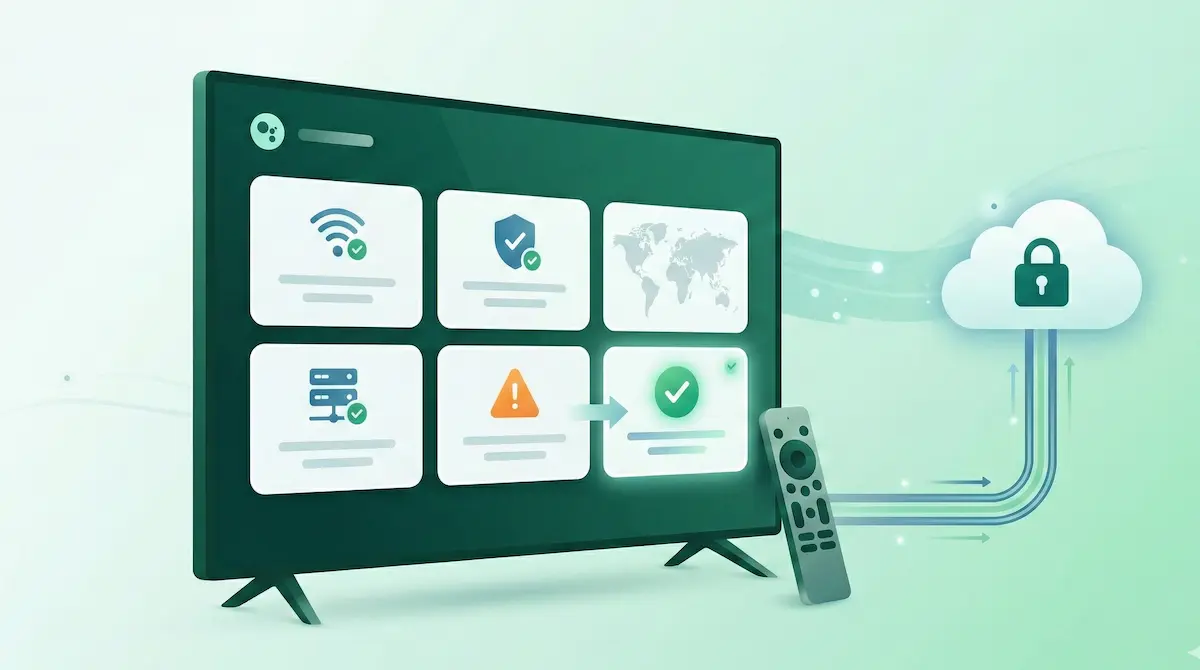
VPN for Android TV: Troubleshooting Guide (2026)
VPNs can work well on Android TV, but troubleshooting feels different than on a phone. The interface is remote-controlled, system menus are sometimes hidden, and many TV boxes use older Android builds with custom networking behavior.
Most VPN problems on Android TV fall into a few patterns: the VPN connects but nothing loads, the VPN app is missing in the Play Store, streaming apps fail, or the connection drops repeatedly on WiFi.
This guide is calm and practical. You will start with a 1-minute diagnostic checklist, then follow fixes based on the exact symptom you see.
If you use NimbusVPN, you have two protocol options (WireGuard and XRay (VLESS/Reality)) plus Split Tunneling and Android TV support. Those tools can help you test compatibility, but the troubleshooting logic applies broadly.
Quick Summary
- Confirm internet works without VPN first.
- Reconnect WiFi and reboot the TV box once (quickly clears stuck states).
- Start with a nearby server location.
- If a network is restrictive (hotel, dorm), try switching protocol (WireGuard ↔ XRay (VLESS/Reality)).
- If streaming apps fail, Split Tunneling is often more useful than changing servers.
- If the VPN app is missing in Play Store, check Google Play certification on the device.
- Change one variable at a time while testing (server OR protocol OR split tunneling list).
Why VPN behaves differently on Android TV
Android TV devices are not just “big phones.” A few differences affect VPN behavior:
- Networking stacks vary by device. Many TV boxes run customized Android builds or older versions, and WiFi drivers can be inconsistent.
- Shared home networks matter more. TVs often sit far from the router, use weak WiFi signals, or share bandwidth with many devices.
- TV box limitations. Some devices have limited memory or aggressive background behavior, which can cause apps to stall.
- Remote-controlled interfaces. Simple actions like opening a browser to test captive portals can be harder.
- Restrictive WiFi environments. Hotels, dorms, and guest networks often use filtering, captive portals, or traffic shaping that affects VPN tunnels.
The result is predictable: a VPN setup that works on your phone may still need small adjustments on the TV.
Quick diagnostic checklist (1-minute test)
Do this before changing deeper settings:
-
Disconnect the VPN.
Open an app that needs internet (YouTube, a browser, or an app store page). Confirm the TV has internet without the VPN. -
Reconnect WiFi.
Toggle WiFi off/on or reconnect to the network. -
Restart the Android TV device.
Reboot the TV box (or power cycle it). This clears many stuck network states. -
Reconnect the VPN.
-
Test another server location (nearby).
If the first server fails, try a second nearby location before jumping far away.
If it works after these steps, you likely had a temporary WiFi or network state issue.
Common VPN problems on Android TV
VPN connects but no internet on Android TV
This usually means the VPN tunnel is “up,” but traffic inside it is failing. On Android TV, common causes are DNS conflicts, captive portals, or restrictive WiFi.
Fixes (try in order):
- Disconnect VPN, confirm internet works without VPN, then reconnect VPN.
- Try a nearby server location, then try another nearby location.
- Switch protocol (WireGuard ↔ XRay (VLESS/Reality)).
- Reboot the TV box and reconnect WiFi (this fixes many stuck states).
If this only happens on one network (for example a hotel WiFi), the network is likely restrictive.
VPN app not appearing in Play Store
On Android TV, the Play Store catalog depends heavily on device certification and compatibility.
Why it happens:
- The device is not Google Play certified, so many apps are hidden.
- The device runs a non-standard Android build.
- The Play Store region or device type limits visibility.
Practical workarounds:
- Check whether the device is Google Play certified (often visible in Play Store settings or device settings menus).
- Update the Play Store and system updates if available.
- If you can install the app on another device with the same Google account, check whether it appears under “My apps” on the TV.
- If the device is uncertified, the Play Store may remain limited even after updates.
Note: certification issues are device-level. They are not caused by the VPN protocol.
VPN fails to connect
If the VPN never reaches a stable “connected” state, the issue is often WiFi stability, restrictive network policy, or protocol mismatch.
Fixes:
- Try a nearby server location first.
- Switch protocol:
- Start with WireGuard on normal networks.
- Try XRay (VLESS/Reality) on restrictive networks.
- Reconnect WiFi and reboot the TV box.
- Test on a different network (mobile hotspot) to confirm whether the WiFi network is the cause.
If it works on a hotspot but not on your WiFi, focus on router/network restrictions.
Streaming apps fail when VPN is enabled
Streaming apps can be sensitive to routing, IP changes, or regional behavior. On TV, this may look like endless loading, login loops, or playback errors.
Fixes:
- Use Split Tunneling:
- Exclude the streaming app (streaming direct, everything else on VPN), or
- Include only the specific apps that need VPN.
- Clear the streaming app cache and restart the app.
- If the TV is on a restrictive network, try switching protocol.
In many cases, Split Tunneling is more effective than switching servers repeatedly.
Frequent VPN disconnects
Dropouts usually indicate unstable WiFi, weak signal, or a router under load.
Fixes:
- Move the TV box closer to the router or use a stronger WiFi band if available.
- Reboot the router and the TV box.
- Choose a nearby server location.
- Switch protocol if disconnects only happen on one network type (for example, only on hotel WiFi).
If disconnects happen even without VPN, solve WiFi stability first.
VPN works on phone but not on Android TV
This is common and usually has a simple explanation: different WiFi behavior, different Android builds, and different app constraints.
Fixes:
- Confirm the TV is on the same WiFi network (not a guest network with stricter rules).
- Reboot the TV box and reconnect WiFi.
- Try a nearby server location.
- Switch protocol if the network is restrictive.
- If a specific app fails, use Split Tunneling.
Phones often have stronger WiFi radios than TV boxes, so signal quality can be the hidden difference.
Protocol choice on Android TV
Most users only need a simple rule.
WireGuard
- Good default on normal home networks
- Often stable with simple settings
XRay (VLESS/Reality)
- Sometimes more compatible on restrictive networks (hotels, dorms, managed WiFi)
- Useful if WireGuard fails to connect or drops repeatedly
Practical guidance:
- Start with WireGuard.
- Switch to XRay (VLESS/Reality) if the network appears restrictive or the connection fails.
Protocol switching helps compatibility. It does not guarantee speed.
Split Tunneling on Android TV
Split Tunneling lets you choose which apps use the VPN and which connect directly. On Android TV, it is especially useful when only one app misbehaves.
Common use patterns:
- Keep a specific app inside the VPN while everything else stays normal.
- Keep streaming apps outside the VPN to reduce playback issues.
- Use it as a troubleshooting tool: adjust one app, reconnect, test, then adjust.
If you are diagnosing issues, start small: change routing for one app only.
Hotel or travel WiFi with Android TV
Hotel WiFi creates extra challenges for Android TV:
- Captive portal login pages may require a browser step.
- Networks may restrict VPN traffic patterns.
- Routers may be unstable or overloaded.
Practical tips:
- Connect to hotel WiFi first and complete the login page before enabling VPN.
- If a captive portal keeps reappearing, disconnect VPN, re-login, then reconnect.
- If the network blocks VPN traffic, try switching to XRay (VLESS/Reality).
- If possible, test with a phone hotspot to confirm whether the hotel WiFi is the issue.
Android TV performance tips
Small habits make VPN usage on TV more stable:
- Choose nearby server locations first.
- Reboot the TV box occasionally (especially after travel or switching networks).
- Avoid changing multiple settings at once while troubleshooting.
- Test the VPN on a different network (hotspot) to isolate WiFi restrictions.
- If you have many devices on one router, rebooting the router can help clear congestion.
FAQ
Why does VPN connect but nothing loads on Android TV?
Often the VPN tunnel connects but DNS or network restrictions prevent traffic from working. Try a nearby server, switch protocol, and reboot the TV box.
Can Android TV block VPN connections?
Android TV itself usually does not “block” VPNs, but the WiFi network or device build can limit compatibility.
Why does VPN work on my phone but not on TV?
TV boxes often have different WiFi hardware and Android builds. Signal quality and network restrictions can affect them more.
Should I switch VPN protocol on Android TV?
Yes, if the VPN fails to connect or drops frequently. Start with WireGuard and try XRay (VLESS/Reality) on restrictive networks.
Can hotel WiFi block VPN on Android TV?
Yes. Captive portals and restrictive hotel networks can interfere with VPN connections. Complete the login page first, then connect VPN.
Do all Android TV devices support VPN apps?
Not always. Some devices are not Google Play certified, which can hide VPN apps in the Play Store.
Why do streaming apps fail when VPN is on?
Some streaming apps are sensitive to VPN routing. Split Tunneling can help by excluding that app from the VPN.
Does restarting Android TV fix VPN issues?
Often yes. It clears temporary network states and can restore stable connections.
How NimbusVPN fits
NimbusVPN provides practical tools that match common Android TV troubleshooting needs:
- Supports WireGuard and XRay (VLESS/Reality) protocol options
- Includes Split Tunneling to manage app-specific routing
- Works on Android TV with a remote-friendly interface
- Simple setup approach: connect, test, then adjust one variable at a time
- Useful for privacy on shared or travel networks (used responsibly)
If you want a VPN app on Android TV that lets you switch protocols and adjust app routing when troubleshooting, NimbusVPN is a practical option.
Related articles to write next
- VPN for Android TV: Setup Guide
- WireGuard vs XRay (VLESS/Reality) on Android
- VPN Not Working on WiFi (Android Fix Guide)