
Fix Xiaomi, MIUI & HyperOS VPN Reconnect Loops (2026 Guide)
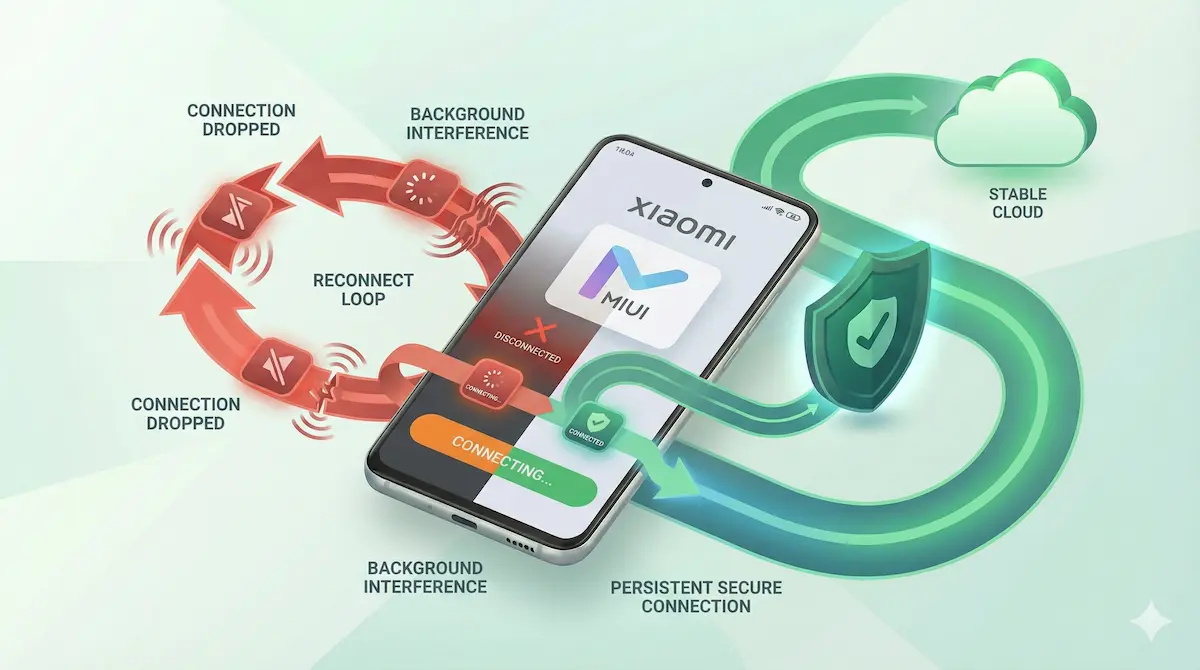
If you use a Xiaomi, Redmi, or POCO phone, you may be dealing with one of the most aggressive background process managers in the Android ecosystem. Whether the device runs MIUI or HyperOS, the system often prioritizes battery saving and memory cleanup over long-running background connections.
For VPN apps, that can lead to reconnect loops, silent disconnects, or a tunnel that drops shortly after the screen turns off.
This guide focuses on the Android and OEM settings that most often cause that behavior.
Quick Summary
- Remove battery restrictions: Set the VPN app to No restrictions where Xiaomi exposes that option.
- Lock the app in memory: Use the Recents screen or Xiaomi security tools so the app is less likely to be cleared.
- Enable Autostart: Let the VPN relaunch after reboot or background termination.
- Check sleep-related network behavior: Some Xiaomi builds aggressively suspend background traffic after the screen locks.
- Re-check after updates: OEM updates sometimes change or reset these settings.
Step-by-Step Fixes for Xiaomi Devices
1. Set battery saver to “No restrictions”
Xiaomi’s default battery profile can suspend background network activity more aggressively than standard Android behavior. For a VPN app, that may mean the tunnel stops working reliably once the app is pushed into the background.
The fix: Go to Settings → Apps → Manage apps. Find your VPN app. Open Battery saver and change the setting from a restrictive mode to No restrictions if that option is available on your build.
For background power context, see our VPN Battery Drain on Android Fix Guide.
2. Lock the app in the Recents screen
On Xiaomi devices, clearing recent apps can also clear the VPN process. If the app is removed aggressively, the connection may collapse and then reconnect in a loop.
The fix: Open the VPN app, then open the Recents menu. On many MIUI/HyperOS builds, a long-press on the app card or an app-options menu lets you apply a padlock or “lock” state so the app is less likely to be cleared.
Because Xiaomi changes this UI over time, the exact path may differ by version.
3. Enable Autostart permissions
If the system kills the app under memory pressure, the app may need Autostart permission to relaunch properly after termination or reboot.
The fix: Go to Settings → Apps → Manage apps → your VPN app and turn Autostart on if the option exists on your device.
4. Configure Android Always-On carefully
Android’s built-in Always-On VPN setting can help keep the tunnel state more consistent, but it can also create problems if you combine it with strict lock settings on public networks.
The fix: Open Settings → Connection & sharing → VPN (or the equivalent VPN section on your device), tap the gear icon next to your VPN, and review the Always-On VPN settings.
Be careful with Block connections without VPN. On hotel or airport Wi‑Fi, that can stop captive portal login pages from loading.
Related guide: Always-On VPN & Kill Switch Android Guide.
5. Check Xiaomi security and cleanup settings
Some Xiaomi builds include extra cleanup behavior inside the system Security app. These options can clear cache, suspend background work, or apply “boost” logic after the screen is locked.
The fix: Open the native Security app and review battery, cleanup, or lock-app settings. If you find options that clear apps after lock-screen inactivity, reduce or disable them for your VPN app where possible.
Practical Expectations for MIUI & HyperOS
These fixes often improve stability, but Xiaomi software can still behave differently across devices, Android versions, and regional builds.
- Firmware updates can change behavior: if reconnect loops reappear after an update, re-check your battery and Autostart settings.
- Low-memory phones are harder to stabilize: on very constrained hardware, heavy multitasking can still cause background apps to be killed.
- Do not expect one setting to fix everything: reconnect loops are often caused by a combination of battery policy, memory cleanup, and network conditions.
FAQ
Why does the VPN key icon disappear completely?
That usually means the VPN service was stopped, not just that the connection stalled. On Xiaomi devices, battery restrictions or cleanup tools are common causes.
Will “No restrictions” use more battery?
Usually yes, at least somewhat. But a stable VPN connection is often less wasteful than a constant reconnect loop.
HyperOS changed the Recents menu. How do I lock the app now?
Xiaomi changes this UI frequently. If the old long-press path is gone, check the Security app or app-management settings for lock, cleanup, or protected-app behavior.
How NimbusVPN Fits
NimbusVPN gives you the practical controls you need to test whether Xiaomi background restrictions are the real cause of instability.
- Protocol flexibility: You can switch between WireGuard and Xray (VLESS/Reality) depending on what behaves best on your device.
- Android-first troubleshooting: The app fits Android-specific workflows where battery policy and OEM restrictions matter.
- Split tunneling support: If one app behaves badly while the tunnel itself is stable, you can test routing behavior more precisely.