
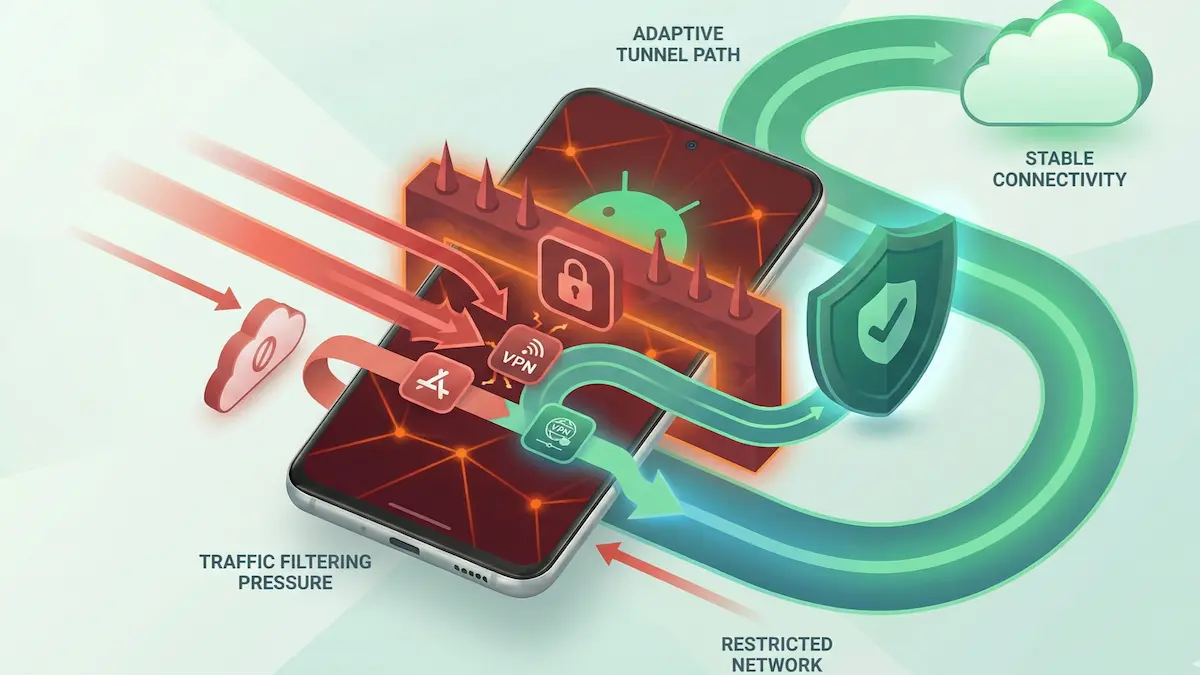
Troubleshooting Xray (VLESS/Reality) on Restrictive Android Networks (2026 Guide)
When standard protocols fail on heavily filtered campus, corporate, or managed public networks, switching to Xray (VLESS/Reality) is often the next step. Xray is designed to make VPN traffic look more like regular web traffic, which can help on networks that interfere with standard VPN patterns.
However, advanced obfuscation also introduces new points of failure at the Android OS layer. If your Xray connection is dropping, stalling, or failing to handshake, the issue usually stems from Android routing conflicts, local network restrictions, or protocol-specific compatibility problems.
This guide explains how to isolate and fix these friction points.
Quick Summary
- Check the OS lockout: Android’s “Block connections without VPN” setting can prevent captive portal login pages from loading, making it look like the network is blocking Xray.
- Sync device time: secure connections depend on valid device time. If your Android system clock is wrong, connections can fail.
- Disable Private DNS: Android’s native DNS-over-TLS can clash with VPN routing, resulting in a connected tunnel with no traffic.
- Treat restrictive networks as variable: some networks interfere with specific traffic patterns more aggressively than others.
Step-by-Step Fixes for Xray (VLESS/Reality)
1. Disable the Android OS captive portal lockout
One common reason Xray fails on public networks such as hotels, airports, and cafés is not deep packet inspection but a captive portal deadlock caused by Android settings. If you have a kill switch or strict VPN lock active, Android can block the HTTP intercept required to load the Wi‑Fi login page.
The fix: Open Android Settings → Network & internet → VPN. Tap the gear icon next to your VPN app. If Block connections without VPN is toggled on, turn it off temporarily.
Disconnect the VPN, open your browser to a simple HTTP site such as http://neverssl.com to trigger the login portal, complete the sign-in flow, and then reconnect Xray.
Read more on state conflicts: Always-On VPN & Kill Switch Android Guide.
2. Fix system time desync
Secure connections can fail if your Android device clock is badly out of sync. If the local time is wrong, handshake validation can break and the tunnel may never come up properly.
The fix: Go to Android Settings → System → Date & time. Enable both Set time automatically and Set time zone automatically. Then force-stop the VPN app and try again.
3. Disable Android Private DNS clashes
If your VPN app shows Connected but nothing loads, you may have a DNS routing conflict. Android includes a native Private DNS feature. On some restrictive networks, that setting can conflict with how VPN traffic is routed, leaving you with a tunnel that appears connected but does not actually move useful traffic.
The fix: Open Android Settings → Network & internet → Private DNS and switch it from Automatic (or a custom provider) to Off temporarily. Reconnect the VPN and test again.
Detailed troubleshooting: VPN Connected But No Internet on Android: Fix Guide.
4. Test whether the network is interfering with this protocol path
Some restrictive networks are more hostile to certain traffic patterns than others. If Xray fails consistently on one managed Wi‑Fi network but works on mobile data or on a different network, that is a useful clue: the issue may be the local network environment, not the app itself.
The fix: Compare behavior across two connections:
- the restrictive Wi‑Fi network,
- mobile data or a different trusted Wi‑Fi.
If Xray works on one but not the other, continue with network-specific troubleshooting instead of assuming the protocol is universally broken.
For protocol context, read: WireGuard vs Xray (VLESS/Reality) on Android.
5. Use split tunneling if one app is the problem
Sometimes the tunnel is stable, but a single app behaves badly because of how it handles network paths, local traffic, or VPN-sensitive routing.
The fix: Use Split Tunneling to test whether excluding or isolating the app changes the outcome. If one app starts working once it is routed differently, that points to an app-level or routing-level issue rather than a full protocol failure.
Routing help: Split Tunneling on Android Guide.
Practical Expectations for Xray on Android
Xray can be useful on networks that interfere with standard VPN traffic, but it is not magic.
- Strict network policies still win: if a network is heavily locked down, even a more resilient protocol may still fail.
- It is a compatibility tool, not a guarantee: success depends on the local network environment.
- Use the simplest stable option when you can: when you return to a normal home or mobile network, a simpler protocol may be the better daily default.
Compare the tradeoffs here: WireGuard vs Xray (VLESS/Reality) on Android.
FAQ
Why does Xray say “Connected” but apps still do not load?
That often means the tunnel came up, but traffic inside it is failing. Common causes include Private DNS conflicts, captive portal deadlocks, or restrictive local network rules.
Should I use Xray (VLESS/Reality) as my everyday protocol?
Usually not by default. It is most useful when a normal network path is being interfered with. On ordinary home Wi‑Fi or mobile data, a simpler protocol may be the better everyday choice.
If Xray fails on Wi‑Fi but works on mobile data, what does that mean?
It usually means the local Wi‑Fi environment is the variable. That can point to captive portal issues, local filtering, or a network that handles certain traffic patterns differently.
How NimbusVPN Fits
NimbusVPN gives you practical Android tools for testing real-world connection problems without forcing you into one fixed routing model.
- Protocol flexibility: You can switch between WireGuard and Xray (VLESS/Reality) inside the app.
- Built-in split tunneling: You can test whether a specific app or traffic path behaves better when routed differently.
- Android-first use cases: The app is built for Android phones and also supports Android TV.