
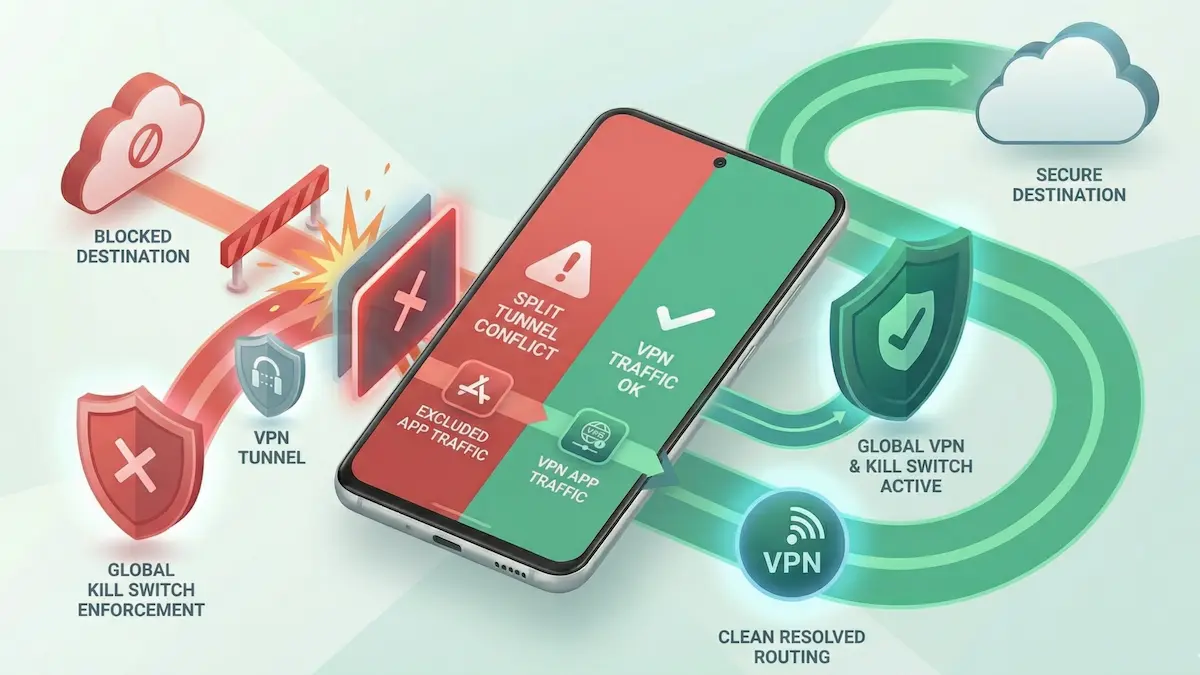
Fix Split Tunneling & Kill Switch Conflicts on Android (2026)
If you use split tunneling to route a specific app outside your VPN but that app suddenly loses internet access entirely, you may be hitting an Android routing conflict.
This usually happens when split tunneling rules collide with Android’s Block connections without VPN setting. One part of the system is trying to let specific traffic bypass the tunnel, while the OS-level VPN lock is trying to block all traffic that is not inside the tunnel.
Quick Summary
- The paradox: you cannot safely tell Android to block all non-VPN traffic while also expecting excluded apps to bypass the VPN normally.
- The OS wins: Android’s system-level VPN lock takes precedence over app-level routing rules.
- Exclude mode usually needs a looser lock state: if an app must bypass the tunnel, strict OS-level network lock can block it.
- Include mode can be easier to reason about: routing only selected apps through the tunnel may be cleaner when you need stricter control.
Step-by-Step Fixes for Routing Conflicts
1. Check whether the OS-level VPN lock is on
Before changing split tunneling rules, verify the Android VPN lock state.
The fix: Go to Android Settings → Network & internet → VPN, tap the gear icon next to your VPN, and inspect Block connections without VPN.
If it is enabled, understand that excluded apps may not behave the way you expect.
Related guide: Always-On VPN & Kill Switch Android Guide.
2. Re-test exclude mode with the strict lock disabled
If your use case depends on one or two apps bypassing the VPN, the cleanest troubleshooting step is to temporarily disable the strict OS lock and test again.
The fix: Turn Block connections without VPN off temporarily, reconnect the VPN if needed, and then retest the excluded app.
If the app starts working, the OS-level lock was likely the main conflict.
3. Try include mode instead of exclude mode
Sometimes the better solution is to invert the routing logic.
The fix: In your VPN app, switch from Exclude mode to Include mode if that matches your use case. Instead of bypassing a few apps, route only the apps that need the tunnel.
That can reduce confusion when you want stricter control over what must remain inside the VPN.
Routing overview: Split Tunneling on Android Guide.
4. Force-stop the affected app and reopen it
Apps do not always adapt cleanly when routing rules change while they are already open.
The fix: Go to Android Settings → Apps, find the affected app, tap Force stop, then reopen it after the routing change.
If the app had stale network state, reopening it can help it establish fresh connections using the updated routing path.
Related troubleshooting: VPN Connected But No Internet on Android: Fix Guide.
5. Check whether Private DNS is adding another layer of conflict
If excluded apps still behave badly even after you adjust the VPN lock state, Android’s Private DNS setting may be part of the confusion.
The fix: Review your Private DNS configuration and test whether disabling it changes the outcome.
Related article: Fix Private DNS Conflicts with Android VPNs.
Practical Expectations for Routing Logic
- This is not always a bug in the VPN app: Android system rules can be the real source of the conflict.
- Not every app behaves the same way: some apps react badly to routing changes and need a full restart.
- Protocol choice usually does not solve this particular conflict: if the issue is the OS-level lock state, switching between WireGuard and Xray is not usually the main fix.
For protocol context: WireGuard vs Xray (VLESS/Reality) on Android.
FAQ
Why does an excluded app suddenly have no connection?
Because Android may still be enforcing a strict VPN lock at the OS level, which can block traffic that is meant to bypass the tunnel.
Can I keep the strict Android kill switch on and still exclude apps?
Sometimes behavior varies by Android version and device, but as a troubleshooting rule you should assume the strict lock can interfere with excluded-app traffic.
Does split tunneling change DNS behavior too?
It can. If an app is routed differently, DNS behavior can also change depending on Android settings and the app’s traffic path.
How NimbusVPN Fits
NimbusVPN gives you practical controls for testing Android routing behavior without locking you into one fixed setup.
- Split tunneling support: You can test whether app-specific routing is the real issue.
- Protocol flexibility: If the routing layer is stable, you can separately compare protocol behavior.
- Android-first troubleshooting: The app fits real Android scenarios where system VPN settings affect app behavior.