
Fix Private DNS Conflicts with Android VPNs (2026 Guide)
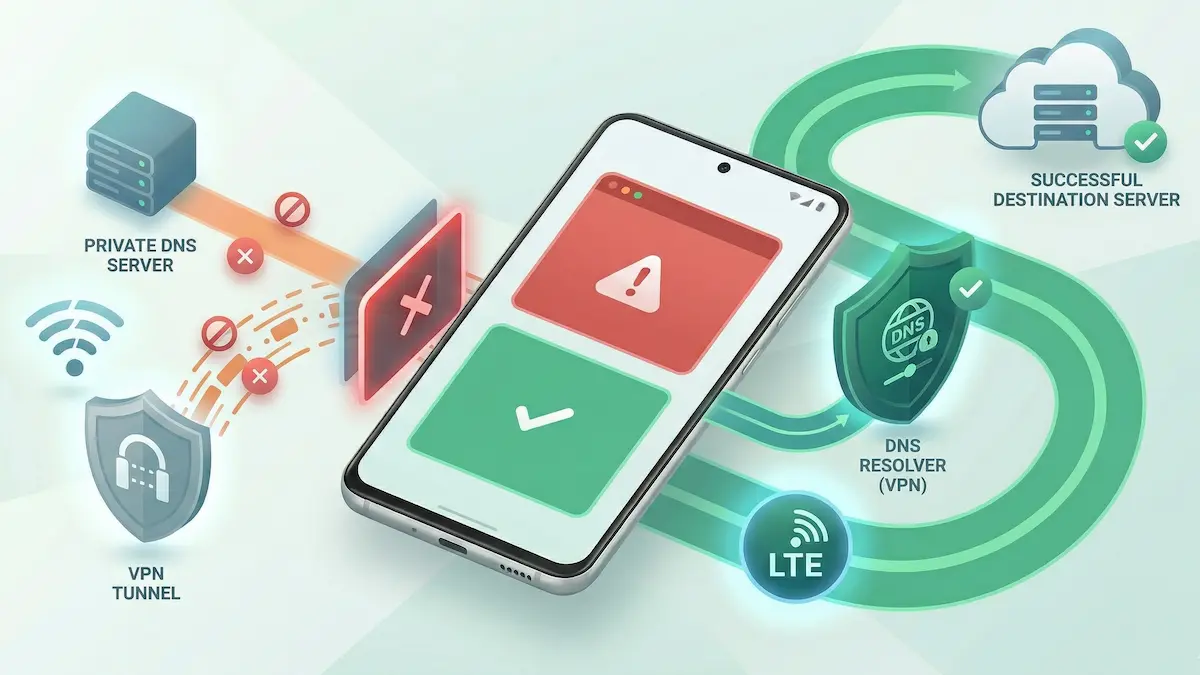
If your Android VPN shows a successful connection but apps still refuse to load, one possible cause is a DNS routing conflict. A common Android-side variable is the system Private DNS setting.
Private DNS adds encrypted DNS behavior at the OS level. In some setups, that can conflict with how a VPN app wants to handle DNS inside its own tunnel. The result may be stalled traffic, broken name resolution, or a connection that looks alive but behaves badly.
Quick Summary
- The conflict: Android Private DNS can interfere with VPN-controlled DNS behavior.
- The symptoms: browsers hang, apps say “No connection,” or traffic fails even though the VPN says Connected.
- The immediate fix: set Private DNS to Off temporarily while testing.
- The key idea: if the VPN is functioning properly, DNS can still be protected inside the VPN path even with Android Private DNS disabled.
Step-by-Step Fixes for Android Private DNS
1. Disable Android Private DNS temporarily
If Android and the VPN are both trying to control DNS behavior, the fastest first test is to give the VPN full control.
The fix: Go to Android Settings → Network & internet → Private DNS and change the setting from Automatic or a custom hostname to Off.
Then disconnect the VPN, reconnect it, and test again.
Related guide: VPN Connected But No Internet on Android: Fix Guide.
2. Compare behavior across different networks
Some DNS conflicts show up only on specific networks, especially public Wi‑Fi or more tightly managed environments.
The fix: Compare the same VPN connection on mobile data, home Wi‑Fi, and the problematic network. If the issue appears only on one network, the local environment may be interacting badly with Private DNS, captive portal handling, or local filtering.
3. Check whether a captive portal is still involved
On public Wi‑Fi, a portal login flow can fail before DNS behaves normally. If the login layer is not truly cleared, disabling Private DNS alone may not solve the whole problem.
The fix: Make sure the network login has fully completed before treating this as a pure DNS issue.
Related guide: Captive Portal Blocked by VPN Lock on Android.
4. Simplify the connection state while testing
If you are also changing protocol, split tunneling, and kill-switch settings at the same time, it becomes much harder to isolate the real cause.
The fix: test one variable at a time:
- Private DNS off,
- reconnect,
- test the base connection,
- then add routing or protocol changes only after the baseline is stable.
Routing context: Split Tunneling on Android Guide.
Practical Expectations
- Not every failure is DNS: Private DNS is a common cause, but not the only one.
- The fix may be situational: some people leave Private DNS off while using a VPN; others re-enable it on networks where no conflict appears.
- This is an Android troubleshooting variable, not a universal law: phones, Android versions, and networks differ.
FAQ
Why does the VPN say Connected if DNS is broken?
Because the tunnel itself may be up while name resolution inside that path is failing.
Is turning off Private DNS unsafe?
Not automatically. If your VPN is functioning correctly, the VPN still protects traffic, including DNS handled inside the tunnel.
Should I leave Private DNS off permanently?
Not necessarily. Treat it first as a troubleshooting variable. If the issue disappears only when Private DNS is off, that tells you it is part of the problem.
How NimbusVPN Fits
NimbusVPN gives you practical Android controls for testing connection state changes without forcing you into one rigid setup.
- Protocol flexibility: You can compare how different connection methods behave once the DNS path is stable.
- Android-first troubleshooting: The app fits real Android networking scenarios where system settings affect the outcome.
- Split tunneling support: If the tunnel is stable but one app still behaves badly, you can test routing more precisely after fixing the base DNS path.