
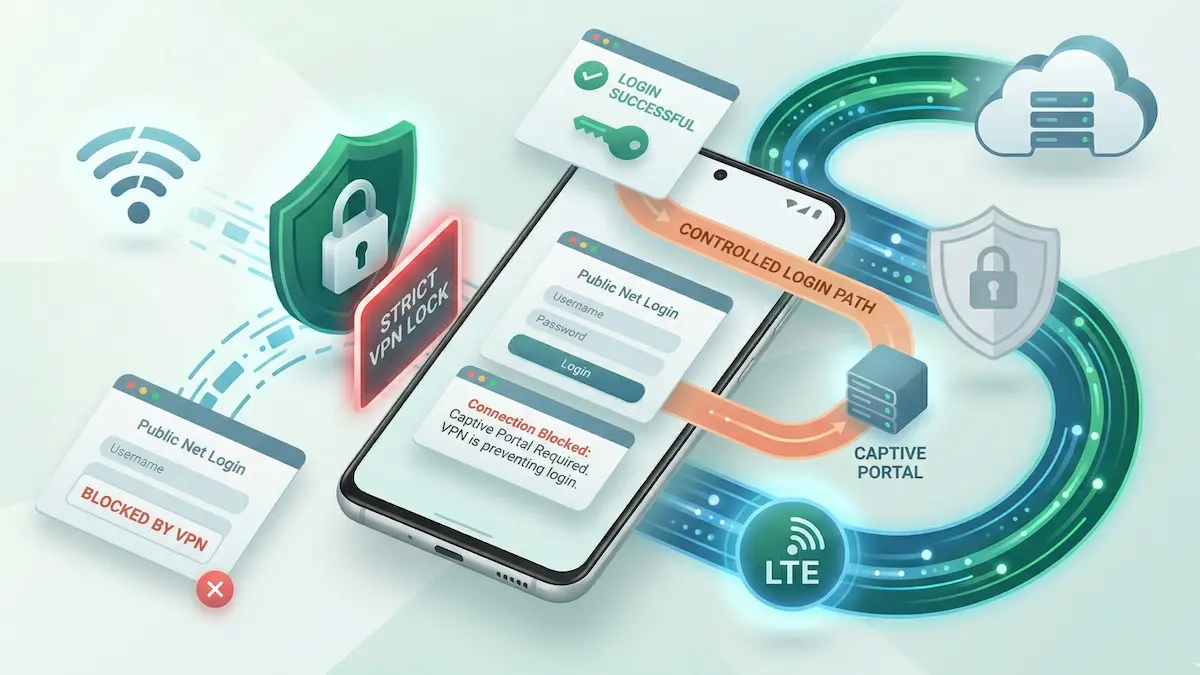
Captive Portal Blocked by VPN Lock on Android (2026 Fix)
If you connect to a hotel, airport, or café Wi‑Fi network and the login screen refuses to load, you may be stuck in a routing deadlock caused by Android’s VPN lock settings.
Captive portals rely on local redirects before the network grants normal internet access. But if Android is configured to block traffic outside the VPN, the portal may never get a chance to present its login page. The VPN cannot finish connecting because the network is still gated, and the portal cannot load because Android is blocking the traffic that would trigger it.
This guide explains how to break that loop safely.
Quick Summary
- The deadlock: Android’s VPN lock can block the local HTTP traffic needed to trigger a public Wi‑Fi login screen.
- The immediate fix: temporarily disable Block connections without VPN so the captive portal can load.
- Force the portal: if the sign-in page still does not appear, try a plain HTTP site such as
http://neverssl.com. - Re-enable your preferred security state after login: once the network is fully open and your VPN is connected again.
Step-by-Step Fixes for the Captive Portal Deadlock
1. Disable the OS-level VPN lock temporarily
If Android is set to block all non-VPN traffic, the portal redirect may never complete.
The fix: Open Android Settings → Network & internet → VPN. Tap the gear icon next to your VPN app. Temporarily turn Block connections without VPN off.
If you normally use Always-on VPN, leave it alone unless your device forces both settings to work together.
Related guide: Always-On VPN & Kill Switch Android Guide.
2. Force the portal to appear
Even after disabling the lock, Android does not always show a clear “Sign in to network” prompt.
The fix: Disconnect the VPN in the app. Then open a plain HTTP page such as http://neverssl.com to trigger the local portal redirect.
Captive portals often behave badly with normal HTTPS pages, so using an HTTP test page is usually the cleanest way to provoke the login screen.
3. Reconnect the VPN only after the portal is cleared
Once you have completed the login page and the network works normally without the VPN, reconnect the tunnel.
The fix: Connect inside the VPN app first. If you normally use Android’s strict VPN lock, turn Block connections without VPN back on only after the tunnel is fully established.
Travel-related context: VPN for Hotel WiFi on Android: Setup + Travel Guide.
4. Test whether device identity is affecting the login state
Some public networks keep track of the device identity they saw during login. If access breaks immediately after you reconnect, device MAC handling can be one possible variable to test.
The fix: Open Android Settings → Network & internet → Wi‑Fi, open the current network, and look for Privacy or MAC address type. If your phone offers both modes, compare behavior between a randomized MAC and the device MAC. If needed, re-authenticate after changing it.
Practical Expectations for Public Wi‑Fi
- There is usually a short unprotected window: you often need to allow some local non-VPN traffic briefly so the portal can load.
- Not every public network behaves the same way: hotels, airports, campuses, and cafés can all implement captive portals differently.
- This fixes a login deadlock, not every public Wi‑Fi problem: after login, you may still run into DNS conflicts or local filtering.
FAQ
Why does the login page appear only after I disable the VPN lock?
Because the local redirect itself needs non-VPN traffic. If Android is blocking that traffic, the portal never gets a chance to respond.
Should I leave Block connections without VPN off on public Wi‑Fi?
Usually only long enough to clear the portal and reconnect the VPN. After that, restore your preferred protection model if you normally use it.
What if I log in successfully and still have no internet after reconnecting the VPN?
That may mean the captive portal is no longer the main problem. At that point, check Private DNS, local filtering, or protocol-specific behavior.
Related guide: VPN Not Working on WiFi on Android: Fix Guide.
How NimbusVPN Fits
NimbusVPN gives you practical Android controls for moving between public-network login state and a stable protected tunnel.
- Protocol flexibility: Once the network is open, you can test whether one protocol behaves better than another.
- Android-first troubleshooting: The app fits real Android scenarios where VPN lock settings and public Wi‑Fi behavior interact.
- Split tunneling support: After the base connection is stable, you can separately test whether an app-specific routing issue remains.
For protocol-specific restrictive-network issues, see: Troubleshooting Xray (VLESS/Reality) on Restrictive Networks.