
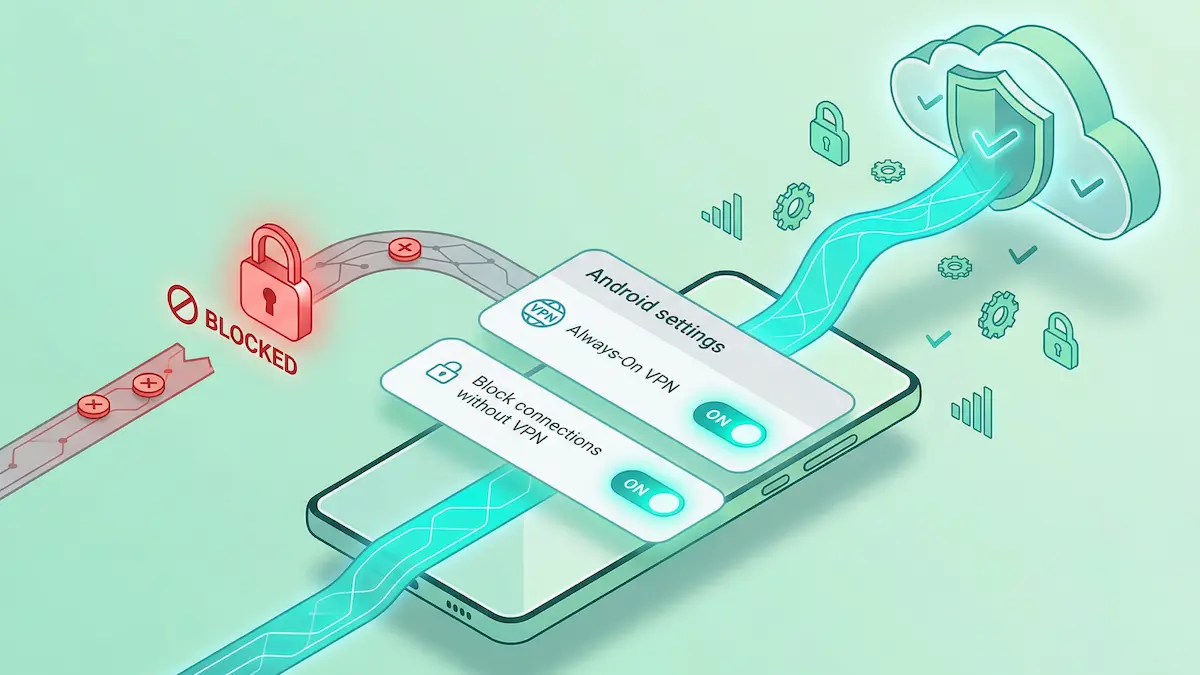
When you rely on a VPN for privacy, a sudden disconnection can temporarily expose your real IP address and local network traffic. To prevent these leaks, Android includes powerful built-in network protection tools: Always-On VPN and Block connections without VPN (commonly known as a Kill Switch).
You typically do not need to rely on custom, third-party kill switches built into individual apps. The native Android OS handles this at the system level, making it highly reliable.
This guide will show you how to enable these features, understand the difference between them, and troubleshoot common issues when your internet seems to stop working.
Quick Summary
- Always-On VPN: Tells Android to automatically restart the VPN if the device reboots or the app crashes.
- The Kill Switch: Found under “Block connections without VPN”, this feature actively cuts off all internet access if the secure tunnel drops.
- Native is better: Using Android’s built-in system settings is usually more stable than relying on in-app kill switches.
- Captive portal warning: If you use a Kill Switch, public Wi-Fi login pages will often fail to load. You must temporarily disable the switch to log in.
The 5-Minute Setup Path
Setting up strict privacy protection takes less than a minute. For most modern Android devices, follow this path:
- Open your phone’s Settings.
- Navigate to Network & Internet (or Connections).
- Tap on VPN.
- Find your VPN app (e.g., NimbusVPN) and tap the Gear icon (⚙️) next to it.
- Toggle Always-On VPN to ON.
- Toggle Block connections without VPN to ON.
Note: The “Block connections” option will only appear after you turn on Always-On VPN.
Finding the Settings by Phone Brand
Because Android manufacturers customize their interface, the exact names of the menus can vary depending on your OS version and ROM. Here is where to look on popular brands:
- Google Pixel / Motorola (Stock Android):
Settings>Network & internet>VPN. - Samsung (One UI):
Settings>Connections>More connection settings>VPN. - Xiaomi / POCO (MIUI / HyperOS):
Settings>Connection & sharing>VPN. - OnePlus / OPPO (OxygenOS):
Settings>Connection & sharing(orOther wireless connections) >VPN.
Once you reach the VPN menu, the steps are identical across all brands: tap the gear icon next to your VPN app and enable the toggles.
Always-On VPN vs. Kill Switch: What is the difference?
It is common to confuse these two settings, but they perform different jobs.
Always-On VPN is an administrative feature. It gives the VPN app permission to start automatically when your phone boots up. It also tells Android to try and revive the VPN service if it gets closed unexpectedly. However, if the VPN fails to connect, your phone will still send traffic over your normal, unprotected internet connection.
Block connections without VPN (The Kill Switch) is a strict security feature. When enabled, Android places a system-wide block on your network. If the VPN tunnel is not active and fully secured, your phone cannot access the internet at all. This ensures that 0% of your data leaks onto your local ISP or a public Wi-Fi router.
For maximum privacy, it is highly recommended to use the best VPN settings for your network combined with both of these native toggles enabled.
When to Turn the Kill Switch OFF (Common Problems)
While a Kill Switch is excellent for privacy, it can introduce friction in specific daily scenarios. If you experience the following issues, you may need to temporarily disable the “Block connections” feature.
1. Hotel and Public Wi-Fi Login Pages
If you are traveling, you will often encounter “captive portals”—those web pages where you must accept terms or enter a room number to access public Wi-Fi. If your Kill Switch is active, Android will block the captive portal from loading, leaving you with no internet. You must turn the Kill Switch off, log into the Wi-Fi, and then turn the VPN and Kill Switch back on. For more details, see our guide on using VPNs on hotel Wi-Fi.
2. “Connected but No Internet” Errors
Sometimes a VPN server becomes temporarily unresponsive. If the Kill Switch is on, your phone will appear to have Wi-Fi or 4G/5G signal, but no apps will refresh. If you run into this, check our troubleshooting guide for “Connected but no internet” issues to resolve server or DNS conflicts.
3. Split Tunneling Conflicts
When you try to use Split Tunneling alongside the native Android Kill Switch, the system will often dead-lock the apps you tried to exclude. Read our dedicated guide to fixing Split Tunneling and Kill Switch routing conflicts here.
FAQ
Does Always-On VPN drain my battery?
Running a VPN constantly will use a small amount of extra power, but the Always-On feature itself does not cause severe drain. If you experience heavy power loss, it is usually due to background app restrictions. Read our guide on fixing VPN battery drain for solutions.
Why is the “Block connections without VPN” toggle greyed out?
This option only becomes available after you have toggled “Always-On VPN” to the ON position. Enable Always-On first, and the second option will unlock.
Do I need a VPN app with a custom built-in kill switch?
In most cases, no. Android’s native system-level Kill Switch operates deeper in the operating system and is generally more reliable than third-party software switches built into individual apps.
Will I miss notifications if the VPN disconnects?
Yes. If “Block connections without VPN” is active and your VPN drops, you will not receive WhatsApp messages, emails, or other push notifications until the secure tunnel is re-established.
How NimbusVPN fits
NimbusVPN is designed to work seamlessly with Android’s native security architecture.
- Full System Compatibility: We fully support Android’s native Always-On and “Block connections” features, providing you with OS-level leak protection.
- Stable Background Service: The app is engineered to maintain a persistent connection, minimizing the times the native Kill Switch has to actually intervene.
- Clear Routing: You can configure Split Tunneling directly within the app, allowing you to tailor your privacy setup to your specific daily needs.
If you are looking for a VPN that respects native Android features without overcomplicating your setup, NimbusVPN provides a solid foundation.